 BestWebExtension Guide
 How to Develop a Chrome Extension
Build your first Chrome extension in about ten minutes: the manifest, a popup page, loading it in developer mode, and debugging it. No build tools needed.

A Chrome extension is a folder of files with a manifest.json at its root. That one file tells Chrome what the extension is called, which permissions it asks for, and what it can open. You can build and run one with nothing but Chrome and a text editor. No framework, no build step, no account.
This guide follows the official Hello World tutorial. The result is an extension that shows a popup when you click its toolbar icon.
What you need
- Chrome on desktop (any current version)
- A text editor
- An empty folder for the extension files
That is the whole list.
1. Create the manifest
In your folder, create a file named manifest.json:
{
  "name": "Hello Extensions",
  "description": "Base Level Extension",
  "version": "1.0",
  "manifest_version": 3,
  "action": {
    "default_popup": "hello.html",
    "default_icon": "hello_extensions.png"
  }
}
The action key declares the image Chrome uses as the extension’s toolbar icon and the HTML page shown in a popup when that icon is clicked.
Use manifest_version: 3. Manifest V2 is finished: Chrome disabled it in July 2025 (Chrome 138) and removed the remaining V2 extensions from the Chrome Web Store on August 31, 2026. If an older tutorial tells you to write "manifest_version": 2, treat it as out of date.
2. Add the popup page
Create hello.html in the same folder:
<html>
  <body>
    <h1>Hello Extensions</h1>
  </body>
</html>
That is a complete extension: a manifest and one page. You can test it right now.
3. Load it in Chrome
Open the extensions page in a new tab: chrome://extensions. (By design, chrome:// addresses are not linkable, so type it.)
You can also reach the same page through Chrome’s Extensions menu, the puzzle button in the toolbar. Click it, then Manage Extensions. Or use the Chrome menu, hover over More Tools, then choose Extensions.
On the page:
- Turn on Developer mode with the toggle in the top right.
- Click Load unpacked.
- Select the folder that holds
manifest.json.
The extension installs immediately. If the manifest declares no icon, Chrome shows a generic one.
4. Pin and test it
By default a locally loaded extension lives in the extensions menu. Pin it to the toolbar so you can reach it while you develop: click the puzzle button, then the pin icon next to “Hello Extensions”.
Now click the extension’s toolbar icon. The popup opens.
5. Reload after changes
Go back to the code and change the manifest’s name to "Hello Extensions of the world!". Save the file, go to chrome://extensions, and click the refresh icon next to the extension’s on/off toggle.
Not every change needs that refresh. From Chrome’s own table:
| Extension component | Needs a reload? |
|---|---|
| The manifest | Yes |
| Service worker | Yes |
| Content scripts | Yes, plus the host page |
| The popup | No |
| Options page | No |
| Other extension HTML pages | No |
6. Read console logs and errors
To log from the popup, add a script tag to hello.html:
<html>
  <body>
    <h1>Hello Extensions</h1>
    <script src="popup.js"></script>
  </body>
</html>
Create popup.js:
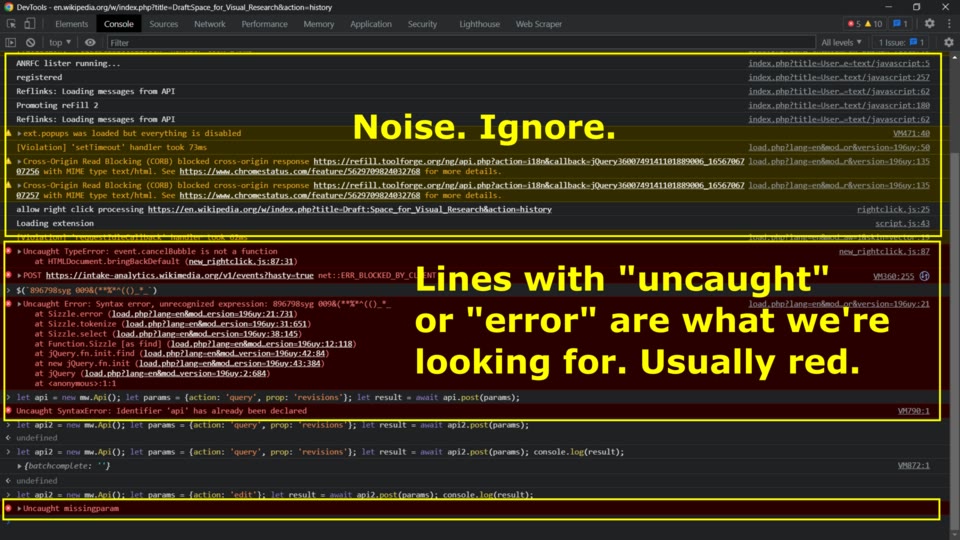
console.log("This is a popup!")To see that message: open the popup, right-click inside it, choose Inspect, and go to the Console panel. The popup is a normal web page; Chrome DevTools treats it like any other.
Now break it on purpose. Remove the closing quote:
console.log("This is a popup!) // brokenReopen the popup and a red Errors button appears on the extension’s card at chrome://extensions. Click it to read the error.
7. What a real extension adds
A popup alone does little. Extensions get useful when they touch pages:
- Content scripts run JavaScript on the pages you visit. Chrome’s Run scripts on every page shows a click counter that script injects.
- Service workers handle events in the background, like a badge update or a keyboard shortcut, when no popup is open. See Handle events with service workers.
- Permissions declare what the extension needs, and Chrome asks the user about them at install time.
If you write TypeScript, install the chrome-types npm package. It ships autocompletion for the Chrome API and is updated whenever Chromium changes.
Real extensions are built the same way as this demo. BestWebExtension ships open source extensions, including the privacy-first JSON Viewer, on top of the same manifest.json structure. Its docs cover installing them, and the source is public.
When it won’t help
- You need Manifest V2 APIs.
background_page,browser_actionand the blocking web request API are gone. Chrome 138 stopped running V2 extensions in July 2025. Port the code to a service worker and the non-blocking API, or the extension will not work in current Chrome. - You must publish to the store. That is a separate step: register as a Chrome Web Store developer and pay a one-time US$5 registration fee before your first item goes public. Local testing needs none of that.
- Your task is a full web app. An extension is a thin layer that Chrome grants access to. Heavy UI, authentication or a dashboard belong on a normal site, with the extension as a small helper.
- You want Chrome on a phone. This flow is for desktop Chrome. Android can load extensions only in special builds.
Takeaways
- An extension is a folder with
manifest.jsonat its root; you can build one with a text editor. - Use
manifest_version: 3; Manifest V2 stopped working in mid-2025. - Load it locally with Developer mode + Load unpacked at
chrome://extensions. - The popup reloads automatically; the manifest, service worker and content scripts need a manual refresh.
- Debug popups with right-click Inspect; broken popup code shows an Errors button on the extension card.
Questions
How long does it take to build a Chrome extension?
A first popup extension takes about ten minutes: a manifest, one HTML page, and loading the folder in developer mode.
Do I need to pay to make a Chrome extension?
Building and running an extension locally is free. Publishing it on the Chrome Web Store needs a developer account and a one-time US$5 registration fee.
Is Manifest V2 still supported?
No. Chrome disabled Manifest V2 in July 2025 and removed the remaining V2 extensions from the Chrome Web Store on August 31, 2026. New extensions use Manifest V3.
Read next
 Best Chrome Extensions for Web Developers: 2026Five Chrome extensions that cover everyday dev work: reading API responses, debugging React, testing cookies, and profiling any site's stack. Checked at each store page in October 2026.
 Best JSON Viewer Extensions for Large PayloadsFive browser extensions for inspecting large JSON responses: virtualized trees, JSONata queries, JSONPath navigation, and which ones stay fast on huge payloads.
 Best Online JavaScript Playgrounds for Quick ExperimentsFive no-install JavaScript playgrounds compared: browser REPLs, CDN packages, and full npm projects, with their free tiers and limits.