 Calibre Zen Guide
 How to Convert EPUB to MOBI
Convert an EPUB to MOBI in calibre or Calibre Zen: add the book, pick the output format and a Kindle profile, and send the result to your reader.

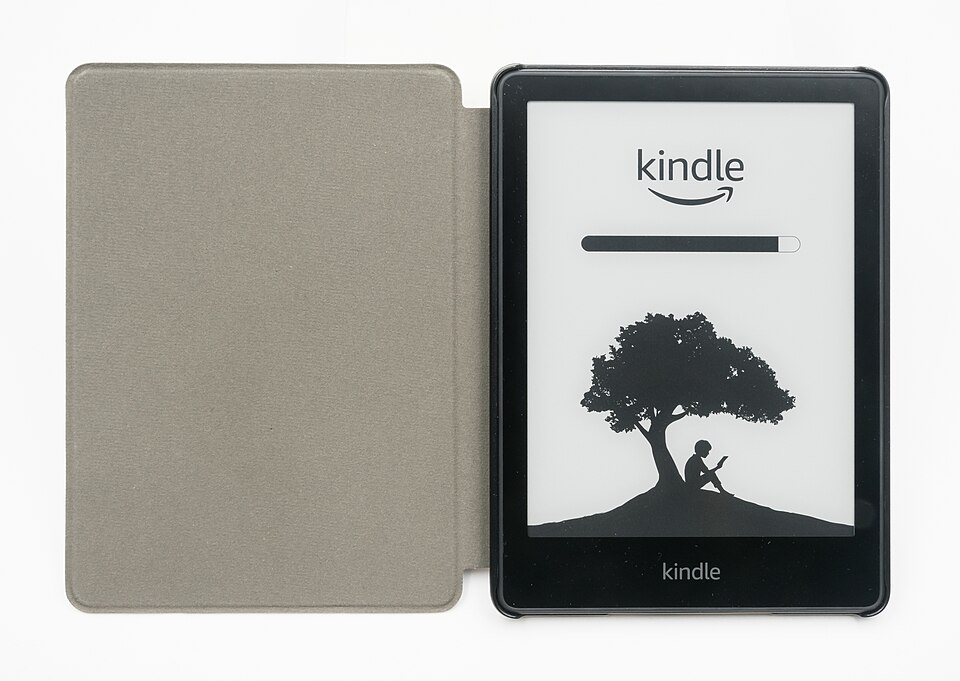
MOBI is the format older Kindles and some ebook apps expect, and EPUB is the open standard most stores sell. Converting one to the other is one dialog in calibre, and Calibre Zen uses the same one.
The honest first step: check whether you need MOBI at all. Amazon no longer accepts MOBI files emailed to @kindle.com addresses, and calibre’s docs now tell you to send EPUB instead. Newer Kindles read EPUB that way. The conversion matters when a device or app really takes MOBI only, which is still true for a lot of older hardware. For those, here is the whole task.
What you need
- Calibre Zen or calibre, on Windows, macOS or Linux. This guide names the menus in Calibre Zen; they are calibre’s own menus, so the steps are identical.
- One EPUB file, with DRM removed. calibre will not convert DRM-protected ebooks, per the calibre manual.
- A target in mind: the Kindle model or app that will read the MOBI. It decides the output profile in step 3.
1. Add the EPUB to the library
Open the app and click Add books in the top toolbar. Pick the EPUB file. If you added a whole folder of books, the file appears in your library together with the others.
If you already run a calibre library, Calibre Zen opens it as it is. The full comparison of the two apps is in Calibre Zen vs calibre.
2. Open the conversion dialog
Select the book, click Convert books in the toolbar, and choose Convert individually. The conversion dialog opens with the book’s title in the top left.
At the top right, the Output format dropdown shows the default format. Choose MOBI.
The dialog keeps your choice for this book only. calibre stores default conversion settings under Preferences → Conversion, so a book converted before keeps its own settings unless you remove them.
3. Set the Kindle output profile
MOBI is a Kindle-family format, so calibre’s manual says to pick a Kindle output profile when converting to MOBI or AZW3. In the dialog, open the Page setup section and set Output profile to the device family you are targeting, for example a Kindle or Kindle Paperwhite.
The profile controls screen size and font scaling. This is why two conversions of the same EPUB can look different on a phone and on an e-ink Kindle, even though both are MOBI.
4. Convert and find the file
Click OK to start the job. A box in the bottom right tracks progress; the format column of the book row gains a MOBI entry when it finishes.
The file lives in the library folder, in the sub-folder calibre created for that author and title. Right-click the book and choose Open containing folder to find it. calibre keeps the original EPUB untouched, so you end up with both formats side by side.
To check the result, right-click the book and choose View format → MOBI. The built-in viewer opens the file exactly as produced.
5. Convert many books at once
For a batch, select the books, click Convert books, and choose Bulk convert. Options are set once for the whole batch, so only group books that need the same settings. Per the manual, bulk conversion ignores per-book settings except metadata and input-format options.
6. Send the MOBI to your reader
With a Kindle connected by USB, select the book and click Send to device. calibre picks the format the device reads, per your settings, and MOBI is a safe choice for older models.
Save to disk writes the file where you point it, which also works for apps that import a local file. Do not use the email path for MOBI: Amazon stopped accepting MOBI sent to @kindle.com addresses, and calibre’s FAQ now recommends EPUB for email. One caveat from that same FAQ: Amazon’s EPUB intake rejects some files that work everywhere else, and the manual’s own workaround is to convert the EPUB to MOBI and back to EPUB.
When it won’t help
- The EPUB has DRM. calibre will not convert it. Books purchased from most stores are locked until you remove the DRM, which may be illegal where you live.
- Your Kindle is recent. It takes EPUB through email or Send to Kindle, so the format conversion adds nothing. Amazon’s email intake is picky, but that is an EPUB problem, not a MOBI one.
- You need a rich table of contents. Per the calibre manual, MOBI has weak support for a metadata ToC, and calibre simulates one in the file. Chapter-jump behavior can differ from the EPUB’s own index.
- You want the newest Kindle features. Formats like AZW3 and KFX carry features MOBI lacks. If your device reads AZW3, calibre can convert to that instead, with the same dialog.
Takeaways
- Convert only when the target device actually reads MOBI; newer Kindles want EPUB by email.
- Convert books → Convert individually, output format MOBI, a Kindle output profile in Page setup.
- calibre keeps the EPUB, so converting is lossless and reversible.
- Use Bulk convert only for books that share settings.
- MOBI is for older hardware: check the device, then convert, then send by USB or save to disk.
Questions
Why convert EPUB to MOBI at all?
Some older Kindles and ebook apps only read MOBI, not EPUB. Newer Kindles take EPUB through email or Send to Kindle, so convert only when the target device needs MOBI.
Is converting EPUB to MOBI legal?
Yes, for books you own and that are free of DRM. calibre will not convert DRM-protected files, per the calibre manual.
Does Calibre Zen convert EPUB to MOBI?
Yes. Calibre Zen wraps calibre itself, so its conversion dialog is calibre's own, with the same formats and settings.
Read next
 How to Convert MOBI to EPUBConvert a MOBI ebook to EPUB in calibre or Calibre Zen: add the book, pick the output format and profile, end up with a real table of contents, and send it to your reader.
 How to Convert MOBI to AZW3Convert a MOBI ebook to AZW3 (KF8) in calibre or Calibre Zen: check what your file really is, set the output format and a Kindle profile, and move it to your Kindle by USB.
 What Format Are Audiobooks In? M4B, MP3 and AAXAudiobooks come as M4B, MP3 or Audible's protected AAX, and streaming apps give you no file at all. Here is each format, how to check what you have, and what plays it.