 Calibre Zen Guide
 How to Convert MOBI to EPUB
Convert a MOBI ebook to EPUB in calibre or Calibre Zen: add the book, pick the output format and profile, end up with a real table of contents, and send it to your reader.

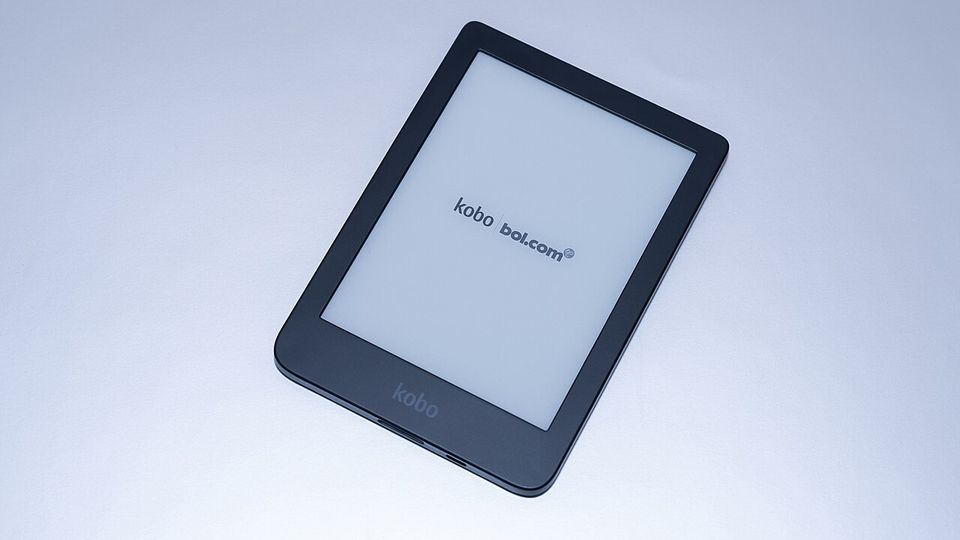
MOBI is Amazon’s older ebook format, the one the first Kindles read. EPUB is the standard the rest of the world moved to: EPUB 3.3 is a W3C Recommendation, and readers and apps that are not Kindles expect it. If you have a .mobi file and a reader that wants EPUB, the conversion is one dialog in calibre.
The good news is that this is the easy direction. calibre’s own FAQ ranks its input formats by how well they convert, and MOBI comes second on that list, behind only LIT. Converting a MOBI to EPUB usually comes out clean, and the original file is never touched. Calibre Zen uses the same conversion engine, so every step below works in both apps.
Check what your MOBI really is
Per the calibre FAQ, MOBI books come in two types, Mobi6 and KF8, and calibre reads both. The confusing part is the extension: MOBI files often carry a .azw or .azw3 name. The type decides how good the source is, not the extension, and you do not have to know which type you have. calibre detects it.
One thing is worth knowing before you spend time on this. A MOBI has no proper support for a metadata table of contents. It is the only mainstream ebook format without it. A MOBI fakes one by putting an extra copy of the table of contents at the end of the book, which is what your Kindle opens when you tap Go to Table of Contents. EPUB carries a real one. So the conversion is also your chance to get a working, device-level table of contents back.
What you need
- Calibre Zen or calibre, on Windows, macOS or Linux. This guide names the menus as calibre documents them, and Calibre Zen presents the same ones.
- One MOBI file, with DRM removed. calibre will not convert DRM-protected ebooks, per the calibre manual.
- The reader or app the EPUB is for. It decides the output profile in step 3.
- A few minutes. A plain novel converts in seconds; a heavily formatted book takes longer.
1. Add the MOBI to the library
Open the app and click Add books in the top toolbar, then pick the MOBI file. It appears in your library with everything else you have added.
If you already run a calibre library, Calibre Zen opens it as it is. Both apps can open the same library, one at a time. The full comparison is in Calibre Zen vs calibre.
2. Open the conversion dialog
Select the book, click Convert books in the toolbar, and choose Convert individually. The dialog opens with the book’s title in the top left.
At the top right, the Output format dropdown shows a default. Choose EPUB. The rest of the dialog is grouped into sections, and the EPUB output section holds the options specific to this format.
3. Set the output profile
Open the Page setup section and set Output profile. The calibre manual gives the rule plainly: Kindle profiles are for MOBI and AZW3 output, and for everything else your best bet for a modern reading device is Generic e-ink HD. Pick the exact profile if your device is in the list, otherwise take that generic one.
The profile is not cosmetic. It tells calibre the screen size it is targeting, which is what keeps body text readable and lets images be resized to fit instead of arriving oversized or tiny.
4. Fix the table of contents now
This is the step that makes the conversion worth doing. In the dialog’s Table of Contents section, calibre can build the metadata table of contents from your book’s headings, or from an existing table of contents in the file. The manual’s guidance is that not every output format supports a multi-level table of contents, and to try EPUB output first when you want one.
So check the ToC settings while the dialog is open, then check the result after the conversion. In EPUB the table of contents is a real navigation document. It is what the reader’s own Table of Contents button opens, and it survives being copied between devices.
5. Convert and check the result
Click OK. A box in the bottom right tracks the job, and the format column of the book row gains an EPUB entry when it finishes. The file sits in the library folder, inside the sub-folder calibre made for that author and title. Right-click the book and choose Open containing folder to see it.
To check the output before it goes anywhere near a device, right-click the book and choose View format → EPUB. The built-in viewer opens the file exactly as produced, and its Show Table of Contents button is the fastest way to confirm step 4 worked.
6. Move the EPUB to your reader
Connect the reader by USB, select the book, and click Send to device. calibre connects directly to the major ebook devices, and it also works with anything that mounts as a USB disk. Save to disk writes the file wherever you point it, which is what apps that import a local file need.
If the book is headed for a Kindle, the rules changed. Amazon announced it would stop accepting MOBI files emailed to @kindle.com addresses, and calibre’s advice is to send EPUB instead: under Preferences → Sharing books by email, take MOBI out of the list and add EPUB. The same FAQ warns that Amazon’s EPUB intake is picky and rejects some files that work everywhere else. If yours is rejected, the manual’s own workaround is to convert the EPUB to MOBI and back again.
Converting the other way? The EPUB to MOBI guide covers that path, for older Kindles and apps that read MOBI only. If your target is a Kindle that reads AZW3, MOBI to AZW3 is the shorter version of this task.
When it won’t help
- The MOBI has DRM. calibre will not convert it. Books locked by DRM stay locked until the DRM is removed, which may be illegal where you live.
- The MOBI never had a table of contents. calibre builds the ToC from the document, so a file with unmarked headings gives it nothing to detect. You can still read the EPUB; you just will not get a chapter list.
- You only ever read on one Kindle. If the MOBI already opens on the device you use and nowhere else, the EPUB is a copy you will not open.
- You want the newest Kindle typesetting. Features that live in Amazon’s KFX format do not come along for the ride. This conversion is about moving to an open format, not about adding Kindle features.
- The book is a fixed-page title. calibre’s EPUB output reflows text. If the MOBI was built as fixed pages, the EPUB will look different, and a page-for-page copy is the wrong goal.
Takeaways
- MOBI is one of calibre’s best input formats, so MOBI to EPUB is the clean direction to convert in.
- Convert books → Convert individually, output format EPUB, and Generic e-ink HD under Page setup for a modern reader.
- The real prize is the table of contents: MOBI simulates one at the end of the book, EPUB carries a real navigation document.
- calibre leaves the MOBI in place, so you keep both formats and can compare them.
- Email delivery to a Kindle now wants EPUB rather than MOBI, though Amazon’s intake is still fussy about what it accepts.
Questions
Why convert MOBI to EPUB at all?
EPUB is the W3C's standard ebook format, so readers and apps that are not Kindles expect it. MOBI is Amazon's older format, and it has no proper support for a navigation table of contents.
Does converting MOBI to EPUB lose anything?
No. calibre writes a new file and leaves the MOBI as it is, so you keep both. Text, cover and metadata carry over, and the table of contents can come out better than it went in.
Can I email the EPUB to my Kindle?
Yes. Amazon no longer accepts MOBI sent to @kindle.com addresses and wants EPUB instead, which it converts on its side. calibre's FAQ warns that Amazon's EPUB intake rejects some files that work everywhere else.
Does Calibre Zen convert MOBI to EPUB?
Yes. Calibre Zen ships calibre's own conversion engine behind a calmer window, so the dialog, formats and settings are the same as calibre's.
Read next
 How to Convert MOBI to AZW3Convert a MOBI ebook to AZW3 (KF8) in calibre or Calibre Zen: check what your file really is, set the output format and a Kindle profile, and move it to your Kindle by USB.
 What Format Are Audiobooks In? M4B, MP3 and AAXAudiobooks come as M4B, MP3 or Audible's protected AAX, and streaming apps give you no file at all. Here is each format, how to check what you have, and what plays it.
 How to Convert EPUB to MOBIConvert an EPUB to MOBI in calibre or Calibre Zen: add the book, pick the output format and a Kindle profile, and send the result to your reader.