 Ampliflare Audio Guide
 7 Pre-Publish Checks Before You Export a Podcast Episode
Seven checks that catch the expensive mistakes before they ship: loudness, true peak, noise, clipping, format, metadata, and a backup. Run them and the episode survives its host.

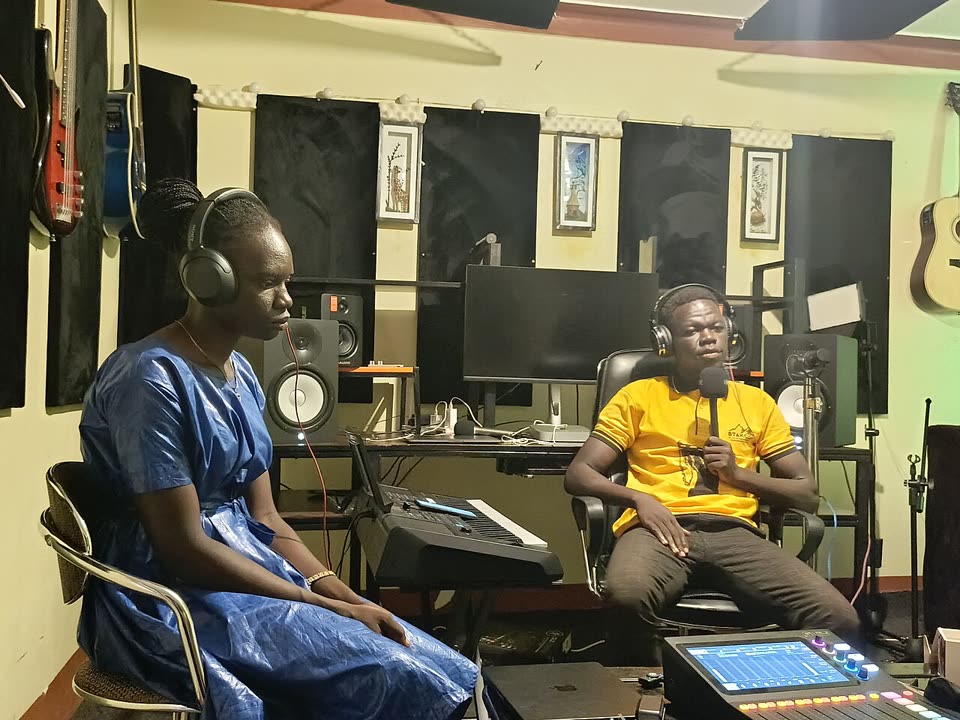
The export is the point where an episode becomes a file other people get. Fixes are easy until then and clumsy after: a missed noise floor means a re-upload, and a feed that breaks does not always repair itself. These seven checks take a few minutes and catch almost everything that makes a listener quit in the first minute.
Two of the checks need a loudness and noise tool. The one used here is Ampliflare Audio, which purplecandy makes. It runs offline and is free for personal use, up to 20 files a week.
What you need
- Your edited episode, still open in the editor.
- Headphones. The same pair every episode, so your judgment stays consistent.
- Ampliflare Audio for the loudness and noise checks. The getting started docs cover install.
1. Listen to the whole episode, top to bottom
Meters measure signal, not sense. A duplicated sentence, a music bed that is too loud, a wrong edit: only a full listen catches those. Mark anything odd as you go, fix the marks in one pass, then listen to just those spots again.
2. Check loudness against the platform’s target
Loudness is how loud the episode sounds on average, measured in LUFS, and every platform normalizes to its own number. Apple Podcasts asks for around −16 dB LKFS, with a tolerance of ±1 dB. Spotify normalizes to −14 LUFS. A file far from the target gets turned down, or sounds weak next to everything else.
In Ampliflare Audio, Enhance evens out loudness and has a preset for podcasts, music, audiobooks and broadcast. Pick Podcasts. The numbers come from Apple’s audio requirements and Spotify’s loudness notes.
3. Keep true peak under −1 dBTP
True peak is the loudest instant in the decoded file. Encoding to mp3 or AAC can clip a signal whose peaks sit at the ceiling, so the platforms set a headroom rule: Apple says true peak must not exceed −1 dB FS, and Spotify says keep below −1 dBTP. If your editor has a true peak meter, check the loudest moment stays under −1 dBTP. If it has no meter, pull the loudest section down by a couple of decibels.
4. Check the noise floor between words
Room tone, hiss, a fan: easy to miss under speech, obvious in the gaps. Play the quietest ten seconds of the episode. If you can hear the room when nobody is talking, clean it before you export. Remove noise in Ampliflare Audio strips fans, hum, traffic and room noise, and your originals are never changed.
Overcleaning is the other failure mode: too much strength is what makes a cleaned voice sound robotic. Start low and raise the strength only until the gaps are clean. The full step-by-step is in this guide.
5. Check for silence gaps and dead air
A pause longer than about two seconds usually sounds like the episode broke. Listen for them, and trim the long ones, either in your editor or with Ampliflare’s Cut tool. Then give the file a clean start and end: no more than a second of silence at the top or bottom, and no click at the edit points.
6. Check the format, bitrate and metadata
Most podcast hosts want mp3. Apple’s requirements accept mp3 at 44.1 kHz, 96-128 kbps mono or 128-256 kbps stereo, and for a speech-only show 128 kbps mono is a safe default. Ampliflare’s Convert writes mp3, wav, m4a, flac, ogg and opus at the quality you choose.
Metadata is easy to forget. If your host lets you set the title and artwork there, do it, and tags written into the file itself travel with it.
Last, open the exported file and listen to a minute of it. The exported file, not the timeline: encoding changes the sound in small ways, and the file you upload is the one listeners hear.
7. Back up the project and the originals
The exported mp3 is a delivery file, not your master. Keep the session file and the raw recordings, in two places if you can. You will need them for a re-export at a different loudness target, for a new platform’s format, or for a clip reused in a later episode. Delete nothing on publish day.
When it won’t help
- A bad recording. These checks fix what is already recorded. Clipping, plosives and a noisy room are best handled before and during the take; the recording checklist covers that side.
- Mostly-music episodes. Remove noise and Enhance are tuned for speech. For a music-heavy show, follow the loudness target of the platform you deliver to, and go light on noise reduction.
For the wider workflow, the complete guide to cleaning up spoken audio ties all of this together.
Takeaways
- Listen top to bottom first. Meters cannot catch a bad edit.
- −16 LUFS ±1 dB for Apple Podcasts, −14 LUFS for Spotify, true peak under −1 dBTP.
- Judge the noise in the gaps between words, not under the speech.
- Export is delivery. The session and the originals are the master.
Questions
What LUFS should a podcast be?
Apple Podcasts recommends around -16 dB LKFS integrated, with 1 dB tolerance. Spotify normalizes to -14 LUFS. Ampliflare's Enhance has a Podcasts preset that sets this for you.
What is a good mp3 bitrate for a podcast?
Apple's audio requirements list 96-128 kbps for mono and 128-256 kbps for stereo at 44.1 kHz. For a speech-only show, 128 kbps mono is a safe default.
Can clipping be fixed after recording?
No. Noise removal and loudness tools cannot rebuild a clipped waveform. Keep peaks below clipping while recording, and keep true peak under -1 dBTP before you export.
Read next
 Best Sound Repair Software for Damaged RecordingsRepair recorded audio by matching the damage to the tool: steady hiss and hum, clicks and crackle, or clipped peaks. Four picks compared, free and paid, October 2026.
 Mic Enhancer Software: Make a Voice Recording Sound BetterMic enhancer software fixes what makes a recording sound cheap: it takes out noise and rumble, evens the level, and sets it for where it plays. Here is the whole job, offline.
 Audio Leveler: How to Even Out a Recording's VolumeAn audio leveler matches a recording's loudness to where it plays: a podcast, audiobook, music streaming or broadcast. Here is the job, in Ampliflare Audio, offline.